
Step-by-Step Guide with Activation Code
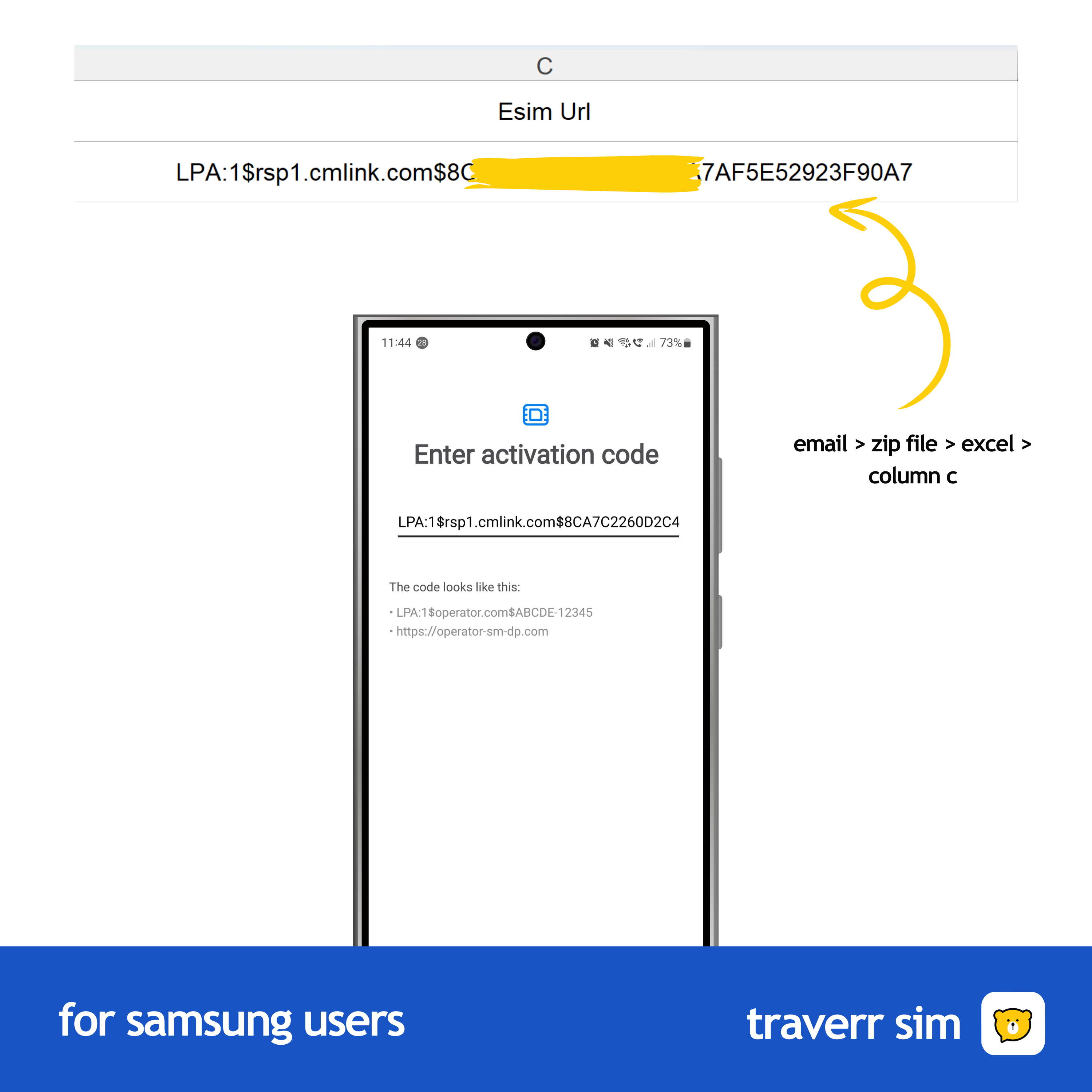
- How to get Manual Code : Included in your Email Attactment > Zip File > Excel
-
Step 1: Access the 'Connections' Menu
- Open the 'Settings' app on your Samsung device.
- Select 'Connections.'
-
Step 2: Navigate to 'SIM Card Manager'
- Scroll down and tap on 'SIM card manager.'
- Choose 'Add mobile plan' to start adding your eSIM.
-
Step 3: Select 'Add Using a QR Code or Manual Entry'
- You will see the option to scan a QR code or enter the details manually.
- Tap on 'Enter Code Manually.'
-
Step 4: Enter Your eSIM Code
- Input the manual code provided by us.
- Double-check for any mistakes before confirming.
-
Step 5: Confirm and Activate
- Tap 'Add' or 'Confirm' to activate the eSIM.
- Wait for the device to configure the settings automatically.
- You’re ready to use your new eSIM plan!